Quick tip: when your ready-made source code throws an error after setup, check the logs before you touch the code
· VegaDigi Journal
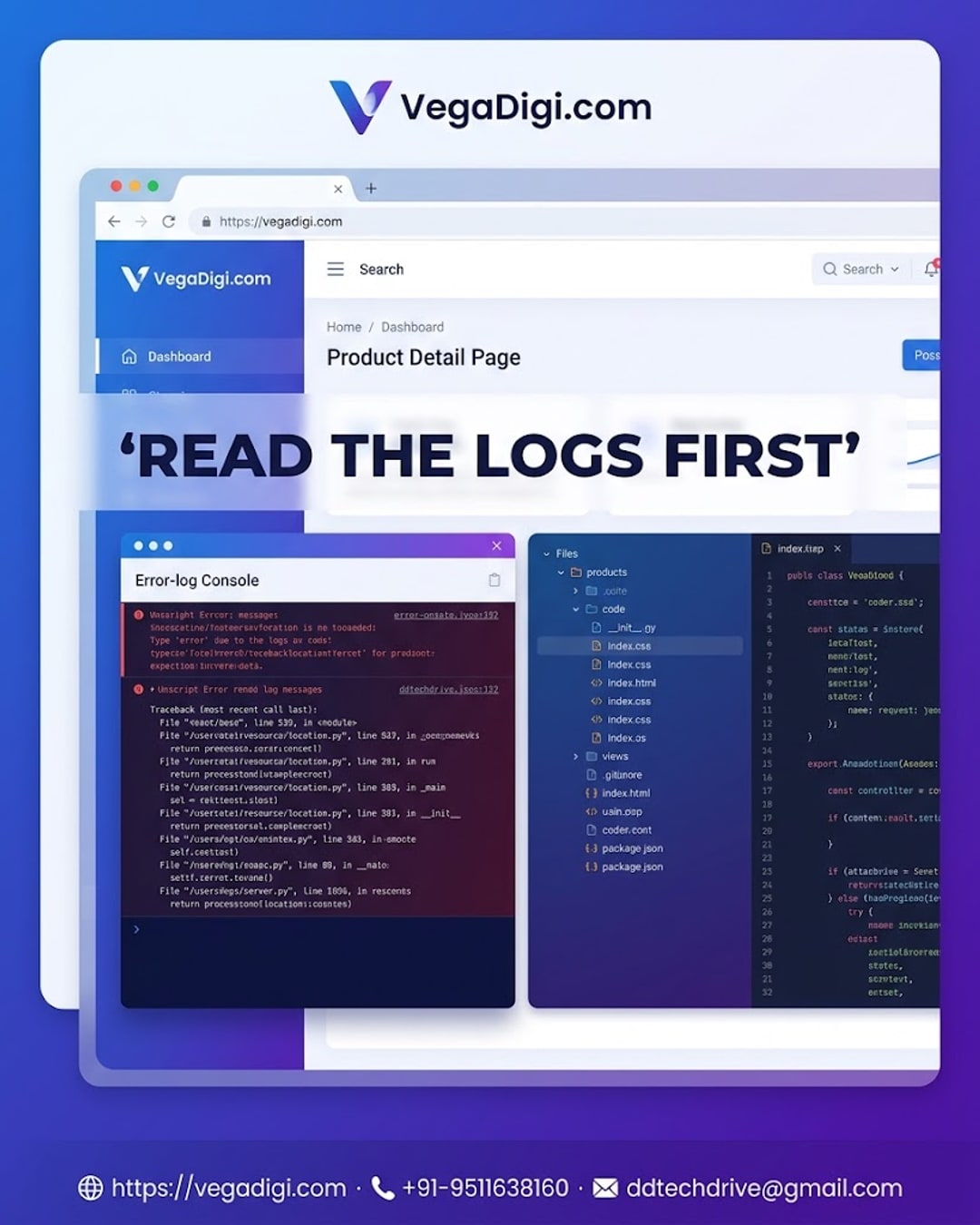
So you just bought a script, template or app source code, followed the setup steps, and... it's throwing an error. Before you panic or start randomly editing files, there's one simple habit that saves developers hours: check your logs first.
Why Logs Are Your First Stop, Not the Code
When something breaks right after setup, the instinct is to open the code and start hunting. But most setup errors aren't logic bugs - they're configuration issues. A missing environment variable, a wrong database path, an unset API key. Your browser console, server error log, or terminal output will usually name the exact problem in plain text. Reading that message first can turn a 2-hour debugging session into a 2-minute fix.
Where to Actually Look
For web apps, open your browser's developer console (right-click, Inspect, Console tab) and reload the page. For PHP or backend scripts, check your server's error log file, often found in your hosting control panel or a logs folder in the project itself. For Android or mobile source code, Android Studio's Logcat panel is your friend. Each of these gives you a timestamped trail of exactly where things went wrong.
Common Setup Errors and What They Usually Mean
A blank white screen often points to a PHP or server-side error being silently swallowed - check server logs. A 500 error usually means a server configuration issue. A console error mentioning undefined or null often means a missing environment variable or a file path that doesn't match your folder structure. None of these mean the source code is broken - they usually mean one setup step needs a small adjustment for your environment.
Make It a Habit, Not a One-Time Fix
Every time you start with new source code, whether it's a WordPress theme, a SaaS script, or an Android app foundation, build the habit of checking logs before customizing. It keeps your changes clean and stops you from editing working code just because something else quietly failed. Pair this with keeping your original files backed up, and troubleshooting becomes a lot less stressful.
My Take
If you're new to working with ready-made source code, spend ten minutes learning where your specific tech stack keeps its logs - it's one of the highest-leverage skills you can build. If you're an agency or freelancer juggling multiple client projects, make log-checking a standard step in your setup checklist before you even open the code editor. It's a small habit, but it consistently separates smooth launches from frustrating ones. VegaDigi's ready-made source code gives you a working foundation to start from - pairing it with good setup habits like this is what gets you to launch faster.